Claude can sound smart and still feel forgetful by lunch. You ask one question, copy the answer, close the tab, and when you come back, it has lost the thread of what you were doing.
That usually isn’t a Claude problem. It’s a setup problem. Most people learn the tool, but not the system around it, so Claude stays a polite stranger instead of becoming part of the job.
The fix is simple: connect Claude to the tools you already use, load it with the context behind your work, and hand off the repeat tasks you don’t want to keep doing yourself.
Start by connecting Claude to the tools you already use
Claude gets better the moment it can work with real sources instead of thin prompts. A connector is the cable. Until it’s plugged in, Claude sits outside your inbox, your calendar, and your files.
What Claude connectors do behind the scenes
When you connect an app, Claude can read from that app when you ask it to. That changes the quality of its help in a big way. Instead of guessing what an email might say, it can search the thread. Instead of suggesting generic time-blocking ideas, it can look at your actual week.
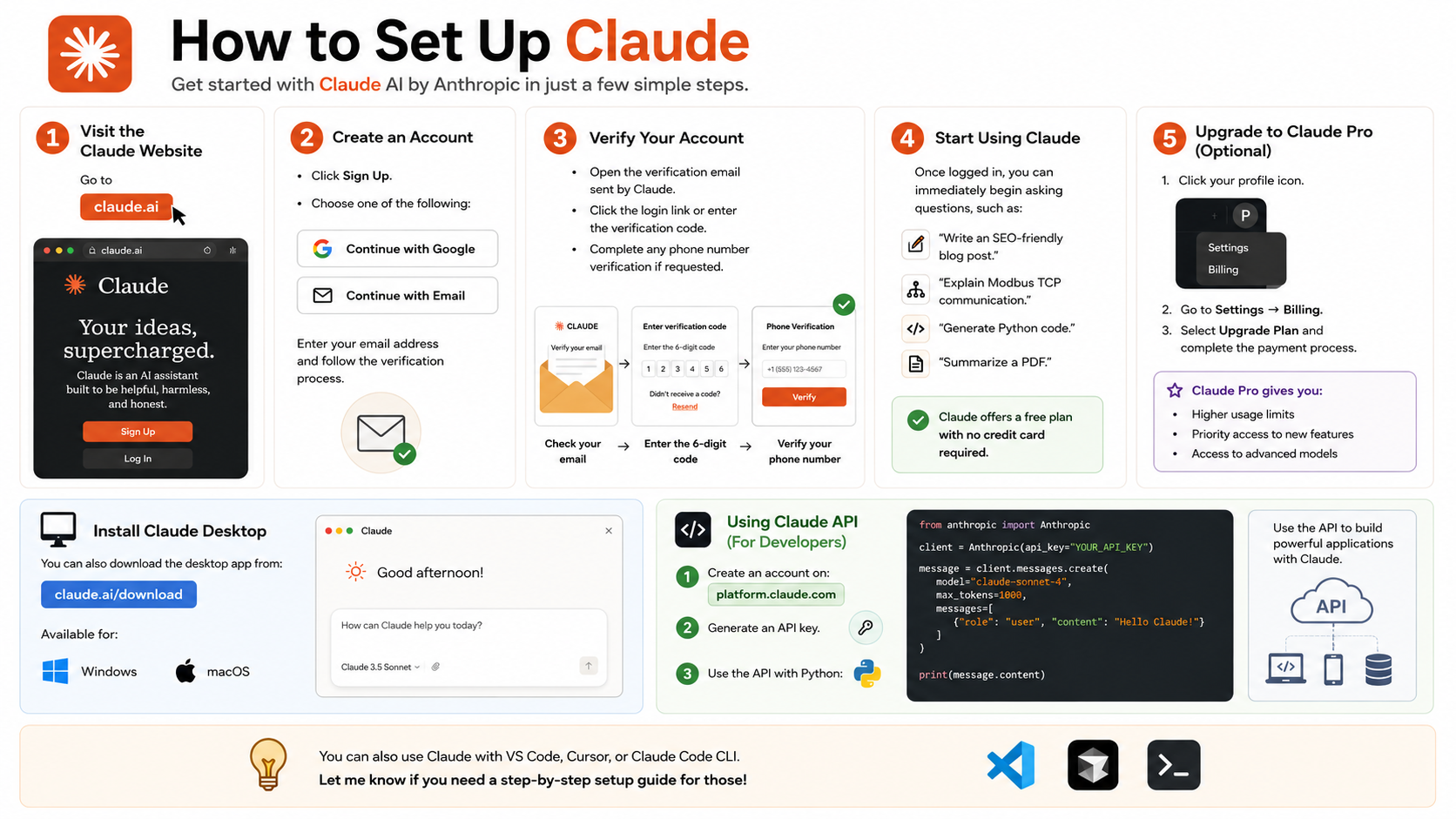
The setup is simple. In Claude, open Customize, then Connectors, choose the app, and sign in. After that, Claude can work with Gmail, Google Calendar, Slack, Google Drive, Notion, and other supported tools.
This is where AI starts to feel less like a chatbot and more like a work assistant. You stop copying and pasting. You stop jumping across tabs. You also stop re-explaining the same background every time you need help.
Why Gmail is the best first connector for most people
Email is where a huge chunk of the day disappears. Gmail is often the fastest place to start because the pain is easy to spot. Once connected, Claude can search your inbox for a thread, summarize what’s unresolved, and draft replies for the messages that still need a human answer.
A request like “Find the last email about the contract renewal and tell me what’s still open” becomes useful because Claude can read the actual messages. You can also ask it to draft responses for emails that need attention, then review and send them yourself.
That last part matters. You stay in control. Claude can prepare the work, but you decide what gets sent.
Privacy concerns are fair, especially with email. The setup described here is that Claude reads what you ask it to read, rather than storing your whole inbox for its own use. If that still feels too open, skip the connector. The point is choice, not blind trust.
Use Google Calendar to find time instead of guessing
Calendar is the second connector that quickly earns its keep. After you connect Google Calendar in the same menu, Claude can scan your schedule and answer questions that usually take a few minutes of clicking around.
You can ask for something precise, such as “Find me an hour this week to work on my project, but not first thing in the morning.” Claude checks the calendar and suggests a slot. That saves time, but the deeper value is planning.
Claude can also compare your time against your priorities. If you tell it what matters most right now, it can look at your week and point out whether your calendar reflects that. Sometimes the answer is uncomfortable. A full week can look productive while doing very little for the work that matters most.
That shift matters because AI only helps when the workflow changes. If you want a wider take on that idea, how businesses adapt workflows for AI integration adds useful context.
Load Claude with your context so it stops sounding like a stranger
Connectors give Claude access to live information. Projects give it memory for a specific kind of work. If you spend most of your time in regular Claude chat, this is the feature that keeps you from starting over every time.
What a Claude Project is and when to use one
A Claude Project is a dedicated workspace for one recurring area of work. You might create one for client reports, a weekly newsletter, meeting prep, research notes, or any job that keeps asking for the same documents and the same tone.
Inside the project, Claude can keep the files, background, and instructions that belong to that work. So the next time you open it, the setup is already there.
Projects make the most sense when the work repeats, but the exact task changes. A new report, a new issue, a new draft, the same context.
How to build a useful project without overcomplicating it
A good project is small and clear. It doesn’t need a mountain of files.
- In the left sidebar, create a New Project and give it a plain name.
- Add the documents Claude needs under Project Knowledge.
- Write a short instruction that tells Claude how to behave in that space.
That instruction can be simple. You might tell Claude to write in a certain tone, use a set format, or focus on a certain audience. Clear beats long.
If you’re still working mostly inside chat, especially on the free plan, Projects is one of the easiest upgrades you can make. Later, some people rely on it less once they move more of their work into Cowork. Still, Projects is often the bridge that makes Claude feel familiar instead of generic.
Why projects save time every time you open a new chat
Without a project, each new chat starts cold. You paste the same background. You upload the same files. You repeat the same instructions. That friction adds up fast.
With a project, Claude remembers that slice of your work. You aren’t rebuilding the workspace each time, and the answers stay more consistent because the source material stays in place.
Know the difference between Claude Chat, Claude Cowork, and Claude Code
Most people only see one version of Claude, then assume that’s the whole product. It isn’t. Claude works in three modes, and the right one depends on what you’re trying to do.
Use Chat when you need answers, and use Cowork when you need actions completed.
This quick comparison keeps the roles clear.
| Mode | Best for | Where it lives | Most useful if |
|---|---|---|---|
| Claude Chat | Questions, drafting, summaries, quick help | Web app and connected experience | You want fast help inside a conversation |
| Claude Cowork | Multi-step tasks across programs | Claude desktop app | You want Claude to carry out repeat work |
| Claude Code | Coding and developer workflows | Advanced coding environment | You write code or manage technical builds |
For most professionals, the middle row is the one that changes the day-to-day work.
Claude Chat is for questions and quick help
Chat is where most people start, and it is still useful. This is where connectors and projects live. It’s great for drafting, summarizing, planning, and getting quick answers when you stay inside a conversation.
The limit is action. Chat can tell you what to do next, but it doesn’t move through your apps and do the steps for you.
Claude Cowork is for jobs that need action
Cowork sits in the Claude desktop app, which is a separate install on your computer. It connects with the broader Claude experience, but its role is different. It can work through tasks that involve multiple steps across different programs.
If you need a longer tour of the interface after you get the big picture, this full Claude tutorial for beginners is a useful companion.
Claude Code is for developers, not most professionals
Claude Code is the advanced option. If you aren’t a developer, you probably don’t need it, and you shouldn’t feel any pressure to learn it first.
That matters because many people assume they need the most advanced version to get serious results. Most office work doesn’t require that. Chat and Cowork are the relevant tools for the vast majority of professionals.
Hand off recurring work to Claude Cowork inside the desktop app
Cowork is where Claude stops being a helpful voice and starts doing the clicks. If Chat helps with thinking, Cowork helps with execution.
What kinds of tasks Claude can run across your computer
Cowork can handle jobs that move through several tools in sequence. For example, you might ask it to pull a report from one app, move the numbers into a spreadsheet, build a chart, and send a summary to your team.
That kind of work drains time because it isn’t hard, it is repetitive. The steps stay mostly the same, yet they still demand attention every week. Cowork is strongest in that gap.
The desktop app matters here because it gives Claude room to interact with your computer directly. If your work reaches into site building and connected desktop tasks, this example of integrating Claude Desktop with WordPress shows how that can extend into a live workflow.
A real-world example, turning weekly research into an automatic brief
One strong use case is recurring research. Instead of manually scanning headlines, opening tabs, and trying to piece together what matters, you can write the task once and schedule it.
A simple brief might ask Claude to search for AI developments tied to your work, filter out the noise, and compile a short update. In the example described, that task runs every Tuesday and Friday at 3:00 a.m. By morning, the brief is already in the inbox.
The time savings are obvious, but the bigger win is mental load. You don’t keep a repeating reminder in your head. The task exists outside you now, and it still gets done.
What to do when Cowork gets stuck
Cowork isn’t perfect. Sometimes it will get stuck, miss a step, or need a clearer instruction. When that happens, treat it like a teammate who needs better direction.
Tell it what went wrong. Tell it what the correct outcome should be. Then let it adjust.
That approach keeps expectations realistic. Cowork isn’t magic, and it doesn’t need to be. It only needs to remove enough repeat work that your time goes back to judgment, review, and higher-value decisions.
The smartest way to start without getting overwhelmed
The fastest way to give up on Claude is to set up everything in one sitting. The smarter move is smaller.
Pick the one task that wastes the most time today
Start where the friction is obvious. For many people, that is email. For others, it is calendar planning, a weekly report, or a research task that keeps returning.
Choose the job you already dislike doing by hand. Then connect the one tool that removes the most friction from that job.
Build one small win before adding the next feature
If Gmail saves you time this week, add Calendar next. If a Project stops you from pasting the same brief into every chat, keep using it until the habit sticks. Then move to Cowork when you have a repeat task worth automating.
Setup is only half the story, though. Once Claude has access and context, your instructions matter more, not less. Clear goals, clear source material, and clear output rules are what turn a connected system into useful work.
Final thoughts
A chatbot that forgets you every 10 minutes will always feel limited. Claude starts to feel useful when it can see the tools you use, remember the work you do, and take a few repeat jobs off your plate.
That is the setup: connect, load, and hand off. Start with one change that solves one daily frustration. Once that first setup works, the rest of Claude makes a lot more sense.